

Using the Dedicated 8XX batch formatter
Use the Dedicated 8XX batch formatter to create new 8XX batch files for adding Dedicated 8XX numbers to your account. Once you create the batch file, you upload it to Lumen Connect.
The Lumen Connect Dedicated 8XX batch formatter has two menus: File and Tools.
Dedicated 8XX batch formatter File menu
Option | Function |
New | Create a new order file |
Open/Import | Load and edit existing order files |
Save | Save the file |
Save As | Save the file with a different name, extension, etc. |
Save As ZIP | Save the file as a .zip file |
Close | Close the active file |
Close All | Close all open files |
Quit | Exit the application |
Dedicated 8XX batch formatter Tools menu
Option | Function |
Add Row | Insert a new row |
Delete Row | Delete the selected row. (The Delete key on your keyboard deletes the contents of the selected field.) |
Copy Row | Copy the selected row |
Paste Row | Paste a copied row |
Validate | Check for format issues |
Find/Replace | Find and replace an existing value with a new value |
Creating a Dedicated 8XX batch file
You can create a batch by doing any of the following:
- Type data directly into the batch formatter
- Type data into the Dedicated 8XX batch ordering template
- Copy header and data record from a spreadsheet and paste it into the batch formatter
- Open the Dedicated 8XX batch formatter.
- Click File > New.
The batch formatter creates a new file.
- Type the header information in the Header Record section. (Learn what fields are required)
- Type the data information in the Data Record section. (Learn what fields are required.) Use the options under the Tools menu as needed to add, delete, copy, or paste rows.
- Click Tools > Validate to check the file for errors.
- If any errors appear in the Validation Results section, correct the errors and repeat step 5.
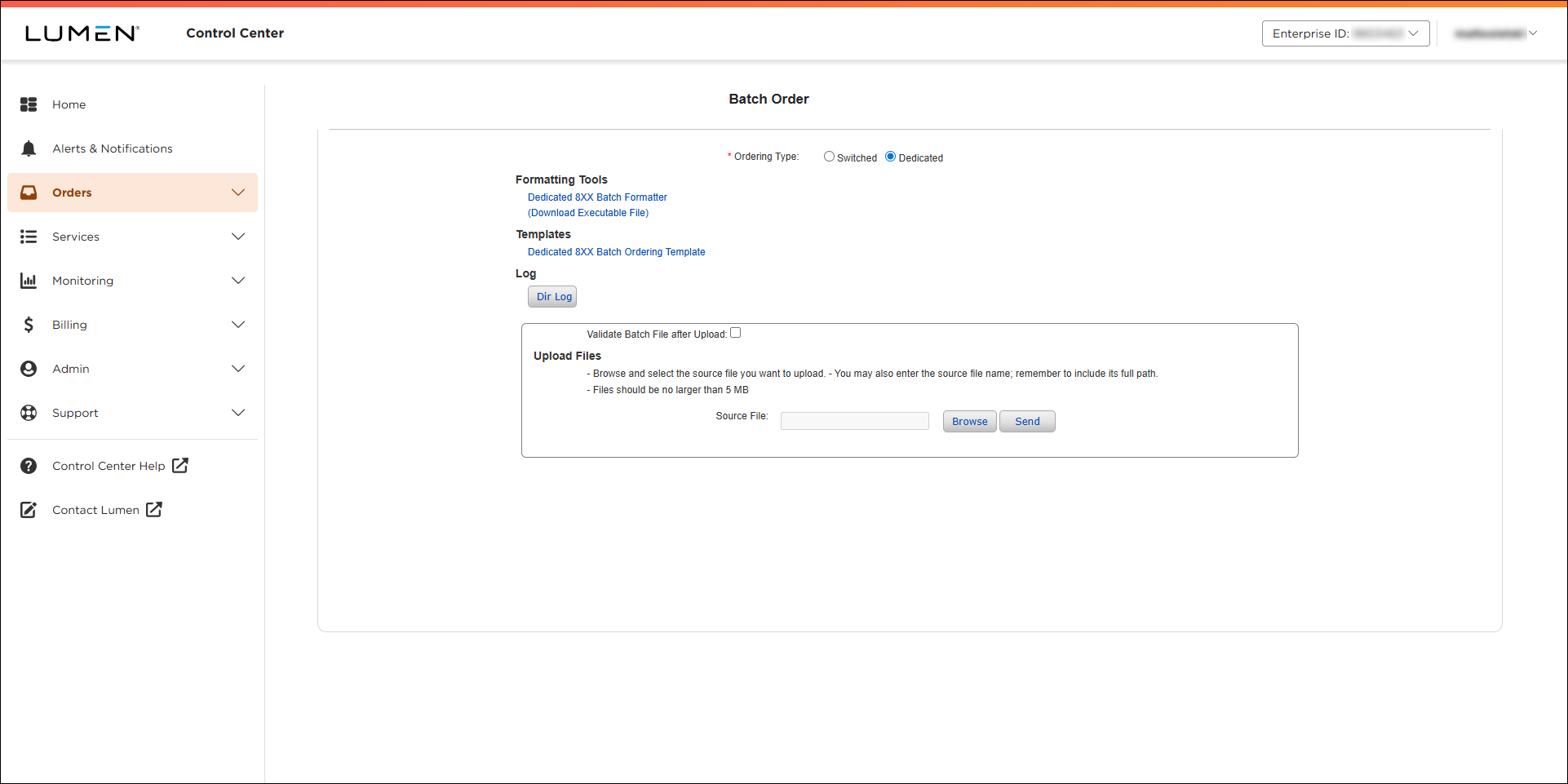
You can find the Dedicated 8XX Batch Ordering Template in Lumen Connect: Manage Orders > Batch > Dedicated.
The template is a spreadsheet used to arrange the data to be loaded into the Batch Formatter application, via the Lumen Protected Internet Delivery [QPID] utility for scripted uploads to the Lumen Connect folders, or in Lumen Connect via Manage Orders > Batch > Dedicated. It is divided into three sections – Header Record, Data Record and Trailer Record. Each field must be populated with the required information for the order to be provisioned successfully.
Header & Trailer Records
- The file must be tab‑delimited
- A tab must come before and after fields in the header and trailer
- The Header Record must be the first line of the file and be followed by a carriage return
- The Trailer Record must be the last line of the file
Data Records
- A tab must follow each data field between the first and last field of each record. If a field is null, a tab should be inserted before and after the null value, e.g. if there are three fields and the second field is a null value, the format would be: Field 1{tab}{tab}Field3 where Field1 and Field3 represent the field contents
- 84 tabs should exist for each Data Record (85 data fields)
- When viewing the file, field spacing may be different for each record due to the tab‑delimited format (e.g. the Comment_Remarks field may only be 20 characters for one record and 75 for another)
- Do not enter a tab after the last field; use a carriage return instead
- Open a copy of the Dedicated 8XX Batch Ordering Template available in Lumen Connect (Manage Orders > Batch > Dedicated):
- Fill in each field with the provisioning data. Insert a space in the last field (Product Transfer Indicator) by pressing the space bar followed by the Enter key (to help ensure the proper tab lengths are saved). If the file includes multiple 8XXs or rows, you can copy this last cell for each row down to the last 8XX on the order.
- Delete all rows except the header, data records, and trailer.
- Click File > Save As, type a new filename using the guidelines below (e.g., 06212021CTLTA.txt), select Text (Tab delimited) as the format type, then click Save.
- use a unique file name
- use .txt as the file extension (tab delimited format)
- the file name must contain at least 13 characters
- include the month, day, and year in MMDDYYYY format (e.g., 06212021)
- include your three‑digit customer code (e.g., CTL) (Control Center validates the customer code when you submit the file.)
- include a T to indicate the file is tab‑delimited
- add a letter to indicate the number of files you've submitted today (e.g., use A for the first file, B for the second file, etc.)
Note: File names with the same root name but different extensions are not recognized as different files and will be rejected by Lumen Connect. For example, Lumen Connect views 11082003CTLTA.txt, 11082003CTLTA.tx1, and 1108CTLTA.tx3 as the same file (11082003CTLTA) and will reject all but the first file.
- If prompted with a ‘multiple sheets’ decision box, click OK.
- When prompted with Tab‑delimited decision box, click Yes.
- Open the file using a text application such as Notepad or Text pad (Text pad is recommended because hidden characters such as tabs, spaces, etc. can be viewed). If using Text pad, select the Visible icon to view hidden characters in the file.
- Remove extra spaces or tabs after the requested_due_date data field in the header row of the file.
- Remove extra spaces or tabs after the trailer_identifier data field found in the trailer row of the file.
- Click Save.
You can copy information from cells on an Excel spreadsheet into a field in the batch formatter.
Note: To copy information from Excel spreadsheet and paste it into a batch file:
- In the batch formatter, creating a new file or loading an existing file.
- Open the Excel spreadsheet you want to copy information from, select the field you want to copy, then click Edit > Copy.
- In the batch formatter, click the field you want to paste the information into, then press CTRL + V on your keyboard.
- In the Dedicated 8XX batch formatter, open a new file. (Click File > New.)
- Copy the header information from the original spreadsheet, then paste it in the Header Record section of the batch formatter.
- Copy data information from the original spreadsheet, then paste it in the Data Record section of the batch formatter.
- Click Tools > Validate to check the file for errors.
- If any errors appear in the Validation Results section, correct the errors and repeat step 5.



