

Creating a disconnect request
You can submit a disconnect request using Lumen Connect to disconnect most Lumen services. For services with a service ID starting MVL‑ (e.g., Lumen® Fiber+ Internet), disconnect the service from your list of services.
Learn more about disconnecting Lumen services
To create a disconnect request:
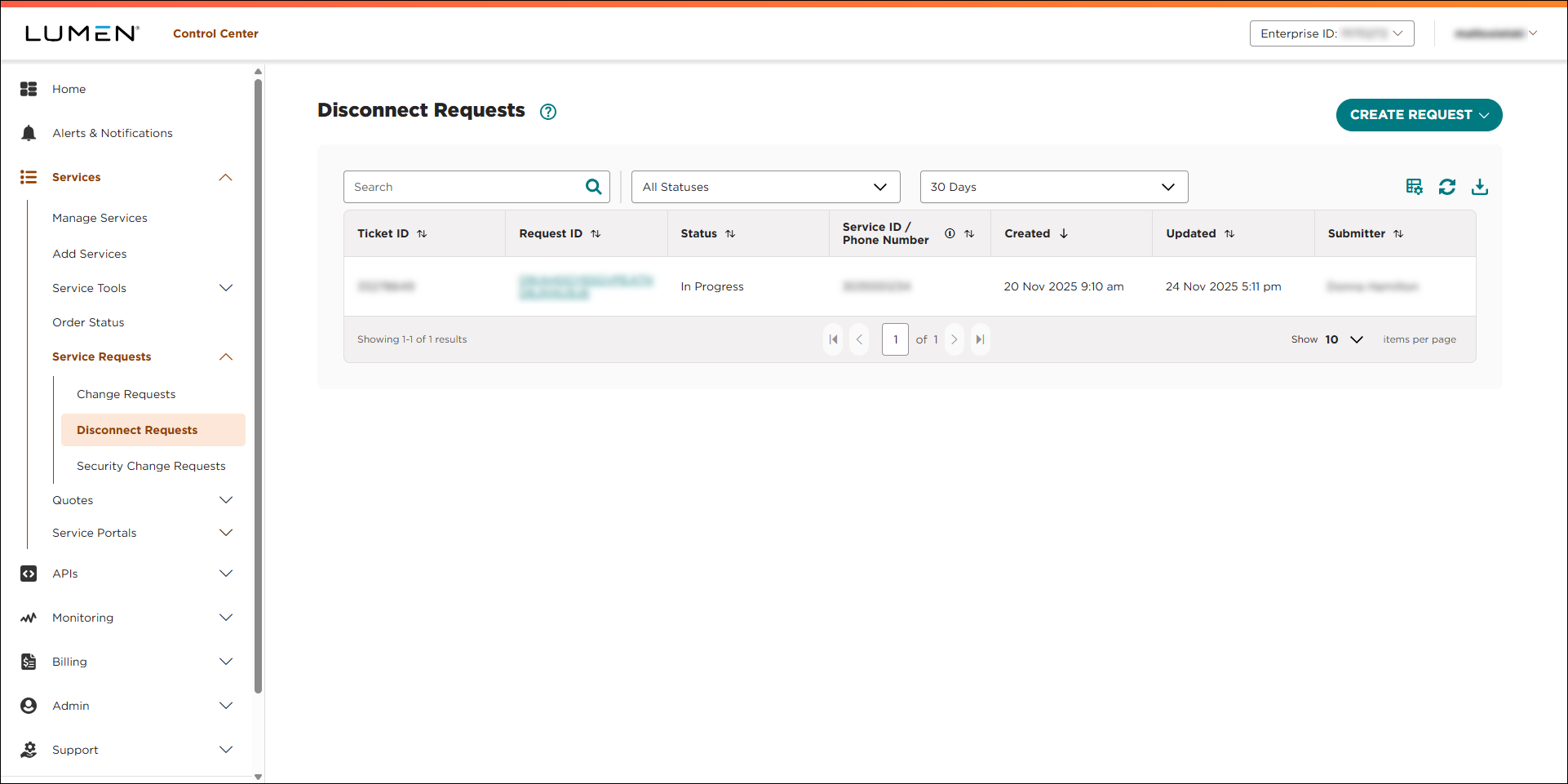
- Using the left menu, click Services, click Service Requests, then click Disconnect Requests.
Lumen Connect shows all disconnect requests for your organization (by default, within the past 30 days) with a status for each request and the date the request was last updated:
- Open—Lumen received your request.
- In Progress—a Lumen representative is assigned to your request and is working on it.
- Pending Customer Clarification—a Lumen representative needs additional information from you to complete the request. Please read the most recent notes within the request and provide the requested information.
- Request Accepted—we accepted your request and created one or more Lumen disconnect orders.
- Cancelled—your request has been cancelled. For more information, view the most recent notes.
- Click Create Request, then click Disconnect.
- In the Services section, do the following:
- Use the fields to select the customer number and billing account number you want to disconnect services for.
- Tell us what services you want to disconnect:
- To disconnect all services on the billing account number, select Yes.
Lumen Connect adds a count of the services to the Selected Services box. (You can download the list of services by clicking Download Services.)
- To specify which services to disconnect from the billing account number, select No, then use the list that appears to select the checkbox on the row for the service(s) you want to disconnect.
Lumen Connect adds each service you select to the Selected Services box.
- To disconnect all services on the billing account number, select Yes.
- Use the fields to select the customer number and billing account number you want to disconnect services for.
- If you don't see a service(s) listed, click Service ID or Phone number not listed?, then do one of the following. (Otherwise, skip to step 6.)
- To type the information for services, click Enter Information, type the service ID or phone number, then type the address for the service. (To include another service, click Add.)
- To upload a spreadsheet with multiple services, click Attach File, create an spreadsheet with two columns (Service ID/Phone Number and Location Address), type the information for each service, then click Add Attachment to upload the file.
- To type the information for services, click Enter Information, type the service ID or phone number, then type the address for the service. (To include another service, click Add.)
- Tell us whether you're porting phone numbers associated with a service. If not, continue with step 7. If you are porting phone numbers, you cannot disconnect the voice service until your new provider submits a disconnect request to Lumen.
- When you're done listing services, click CONTINUE.
- Fill in the Disconnect Details section:
- From the Disconnect Reason and Reason Details list, tell us why you're requesting to disconnect the service(s).
- As you fill in the fields, Lumen Connect updates the form with additional questions where we need information to process your request. Continue to fill out the form.
- In the Requested Disconnect Date field, select the date (30–90 days in the future) you'd like to have your service disconnected. (By default, Lumen Connect suggests a date 30 days in the future.)
- In the Special Instructions field, type any additional details (e.g., cross‑connect information) that could help us process your request.
- If you need to add a ticketing or tracking number from one of your systems, type it in the Customer Tracking ID field.
- When you're done, click CONTINUE.
- From the Disconnect Reason and Reason Details list, tell us why you're requesting to disconnect the service(s).
- In the Third-party Cross Connect section, tell us whether you have a cross connect with another provider that's related to a service you're disconnecting.
- If you don't have a third-party cross connect, select No, then click CONTINUE.
- If you have a third-party cross connect associated with one of the services, select Yes, then use the fields that appear to tell us more about the cross connect. When you're done, click CONTINUE.
- If you don't have a third-party cross connect, select No, then click CONTINUE.
- In the Contacts section, do the following:
- Type the name, email address, and phone number for the primary contact on this disconnect request. (By default, Lumen Connect uses the information in your user profile.)
- If needed, provide the name, email address, and phone number for a secondary contact.
- When you're done, click CONTINUE.
- Type the name, email address, and phone number for the primary contact on this disconnect request. (By default, Lumen Connect uses the information in your user profile.)
- Review the summary of your request, then click SUBMIT REQUEST.
Lumen Connect submits your request. You can now track the status of your request in Lumen Connect (along with any other disconnect requests for your organization).



