

Viewing the status of a security change request
You can track the status of security change requests for your organization in Lumen Connect. For each request, you can view details and add notes to communicate with the Lumen representative assigned to your request. If you no longer need a change you requested, you can close a security change request.
Note: Lumen Connect shows security change requests for up to the past year.
To view the status of a security change request:
- Using the left menu, click Services, click Service Requests, then click Security Change Requests.
Lumen Connect shows all open and recently closed security change requests (by default, within the past 30 days) for your organization with a status for each request.
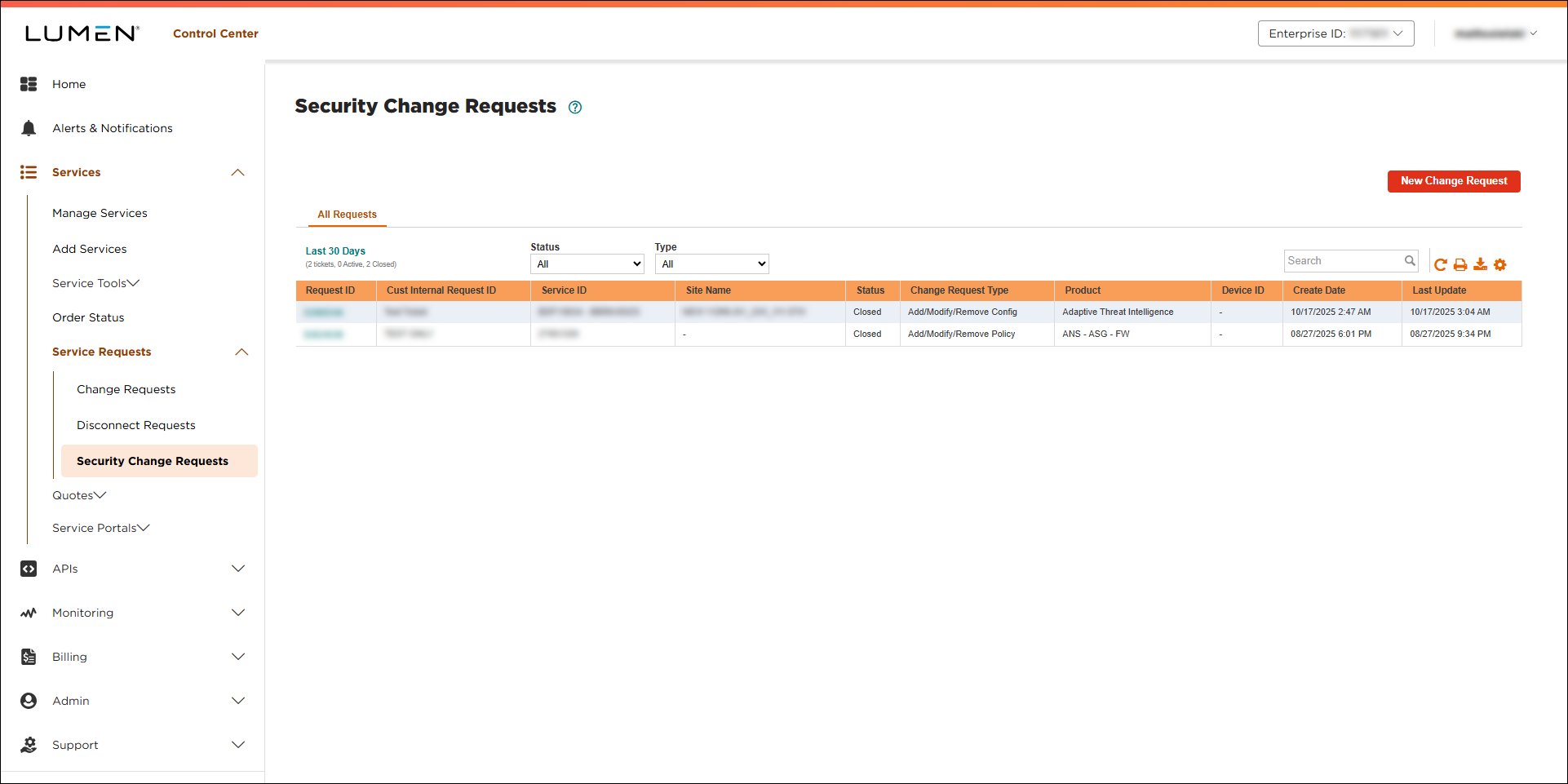
- If you don’t see the security change request you’re looking for on the list, use the Search field. You can also filter the list using the Status or Type lists.
- Do any of the following:
- To view details or notes for a security change request, click the request ID.
Lumen Connect shows details for the request you selected. If the request is still open, you can add notes to communicate with the Lumen representative assigned to your request.
- To search for a request, type information related to the request (such as a request ID, service ID, location, or product) in the Search field.
Lumen Connect filters the list as you type search criteria.
- To filter the list so you see only a certain status or type of security change request, use the Status and Type lists.
- To refresh the list, click the icon.
- To download a spreadsheet (.xls) of the tickets, click the icon.
- To view details or notes for a security change request, click the request ID.



