

Changing dedicated termination numbers on a routing plan
In Lumen Connect, you can change the termination number(s) for any routing plan (geographic routing, day‑of‑year, day‑of‑week, time‑of‑day, percentage allocation, etc.) for a Lumen® Toll-Free Service with the change taking effect in a few minutes. If you need to, you can also change a termination number on multiple routing plans at once (known as bulk edit termination). You can also change a routing plan from dedicated to switched termination.
To change dedicated termination numbers on a routing plan:
- In the Services widget on the homepage, select Toll Free from the Find by Product or Service Tool list.
Lumen Connect shows all Toll Free services on the enterprise ID.
- Search for the service you want to work with. When you find the service you want to work with, click the hyperlinked service ID or click the icon (in the Actions column), then click View Details.
Lumen Connect shows details for the toll-free service you selected.
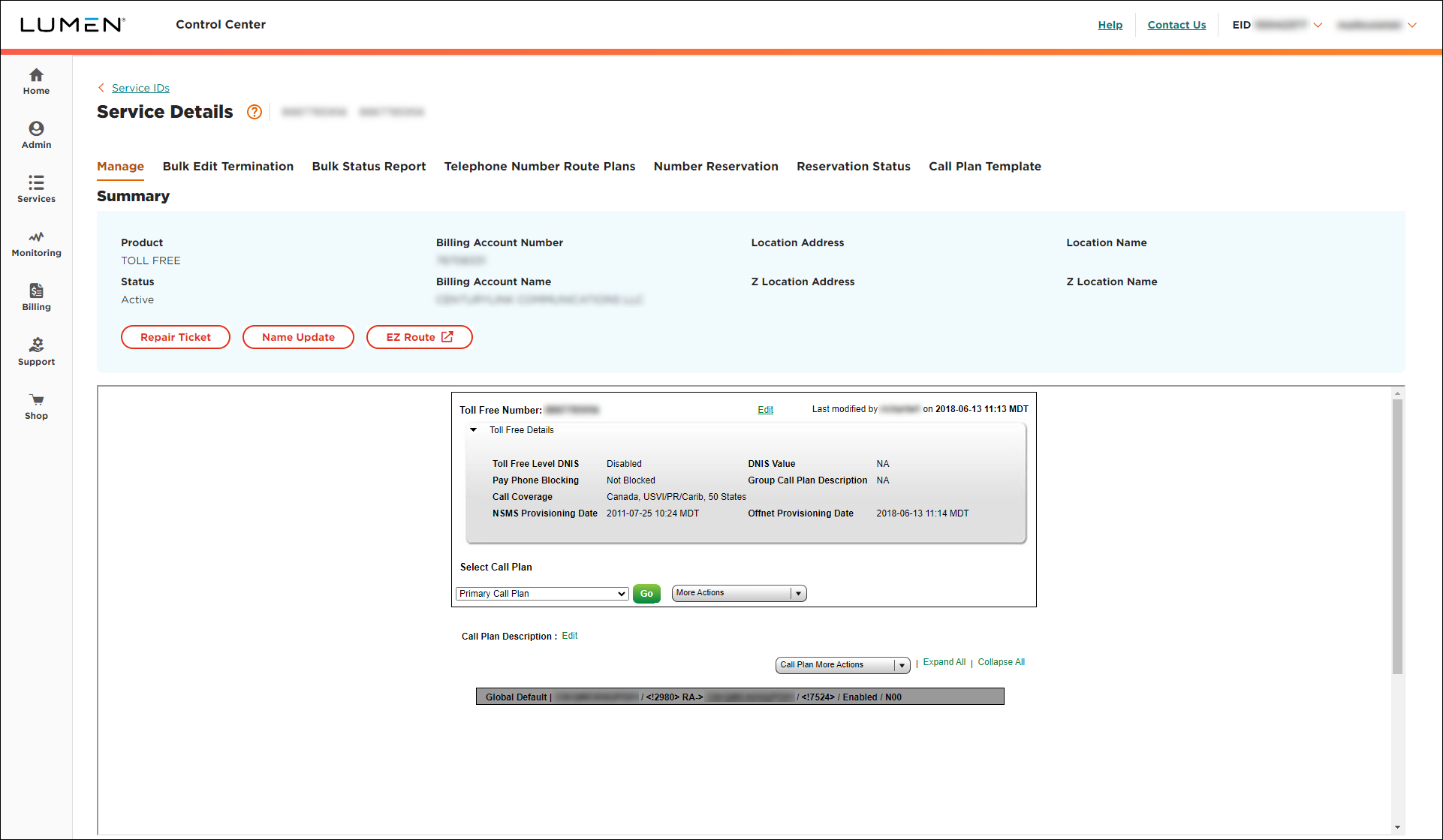
- From the Call Plan More Actions list, select Edit Call Plan.
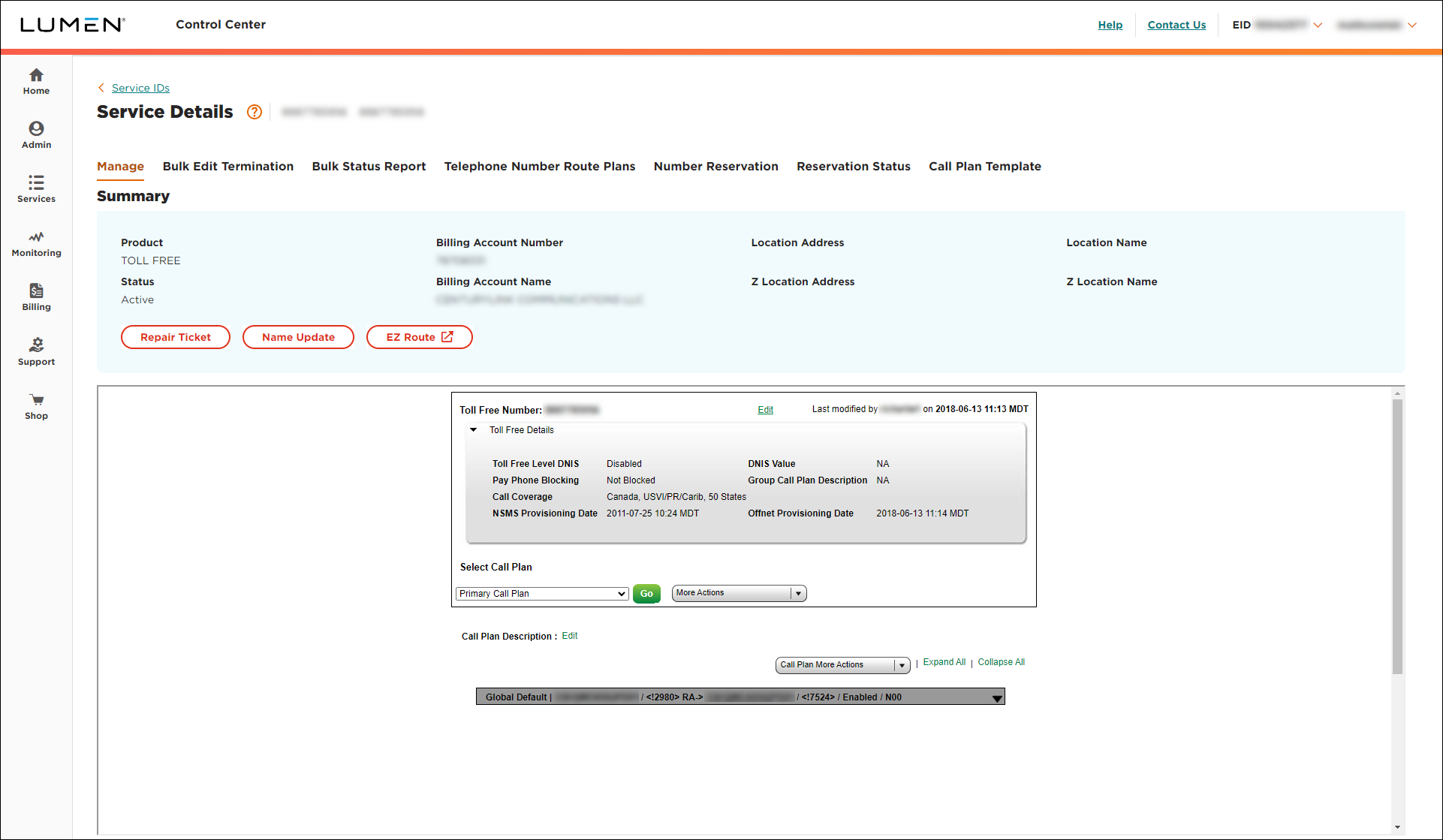
- Click on the Global Default gray bar.
- From the Primary Trunk list, select new trunk group. (The modify option only updates the description. Do not select this for DNIS changes.)
- Scroll down, then click Update.
- Click Save Changes (you may need to scroll down in the window).
- Select the date and time you want your changes to take effect, then click Submit.
Important: After you schedule the changes, you cannot edit the plan until the pending changes are activated. You can check the status of the request by selecting Job List from the More Actions list.



