

Creating a group call plan
For Lumen® Toll Free Service, group call plans let you change the routing plan for multiple toll-free numbers at once. After you use Lumen Connect to set up the group call plan and choose which numbers use that routing plan, any changes you make will automatically update on all the toll-free numbers in the group. You can update the group call plan as your business needs change (including adding more toll-free numbers or removing numbers).
To create a group call plan:
- In the Services widget on the homepage, select Toll Free from the Find by Product or Service Tool list.
Lumen Connect shows all Toll Free services on the enterprise ID.
- Search for the service you want to work with. When you find the service you want to work with, click the hyperlinked service ID or click the icon (in the Actions column), then click View Details.
Lumen Connect shows details for the toll-free service you selected.
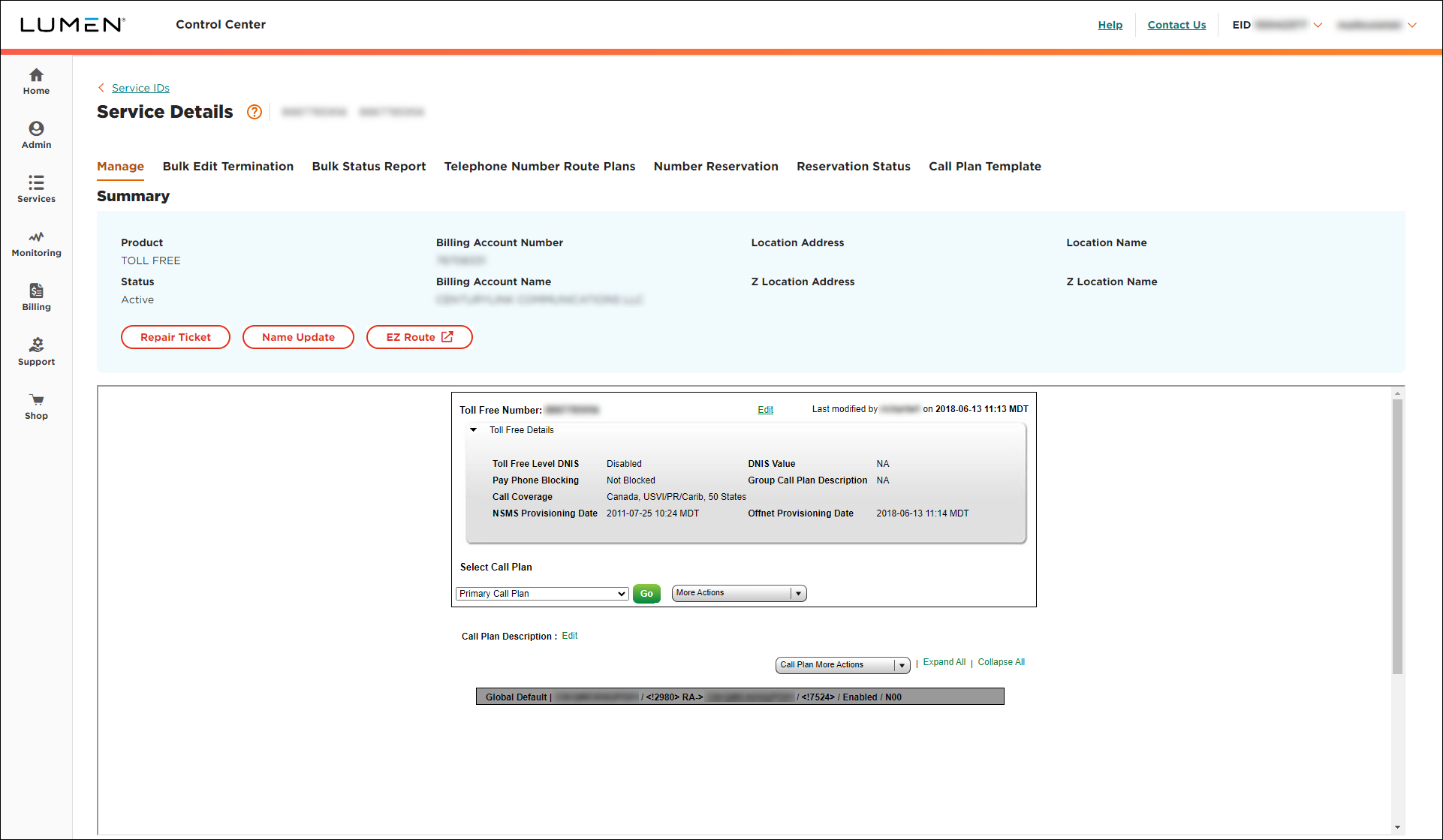
- From the More Actions list, select Group Call Plan.
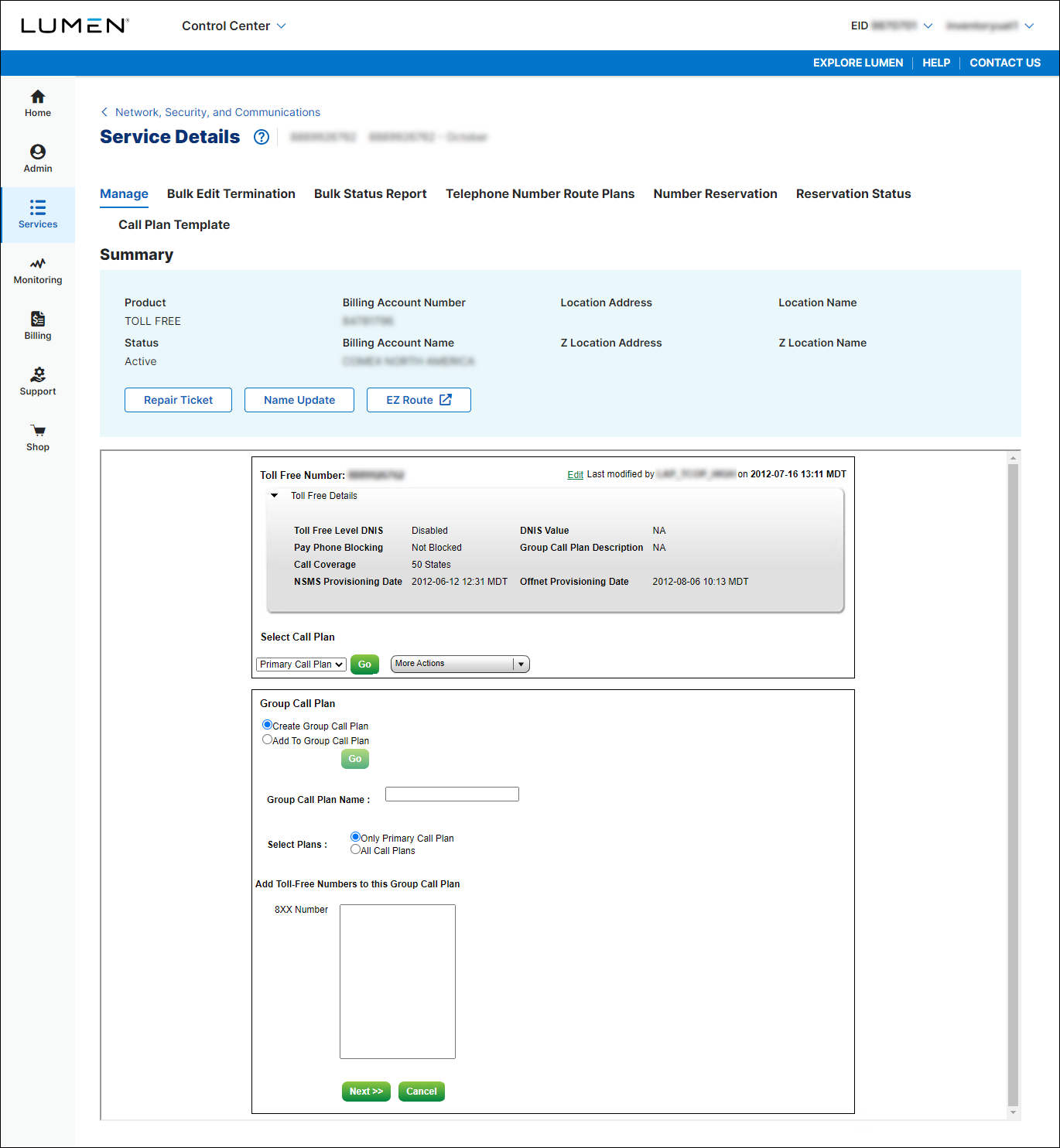
- Select the Create Group Call Plan radio button, then type a name for the group call plan.
- Select either the Only Primary Call Plan or All Call Plans radio button.
- In the 8XX Number field, type the toll‑free number(s) you want this group call plan to apply to. You also need to include the toll‑free number you selected to start creating this group call plan.
- Click Next.
- Type the unique DNIS override for each dedicated trunk group and/or unique ANI.
- Click Submit Group Call Plan.
Lumen Connect confirms your request and includes the date, time, and batch ID.
- Click OK.
To check that your call plan saved, click Select Call Plan list. You'll see your available call plans, including the one you just created.



