Creating a contact manually (VVX 3xx/4xx series)
If you want to add a contact to your directory, and their information isn't available in your call records, you can add the contact manually.
To create a contact manually:
- Press the Home button.
- Press the right navigation key to highlight Directories, then press the Select button (in the center of the navigation keys).
- With Contact Directory highlighted, press the Select soft key.
- Press the Add soft key.
- Use the up and down navigation keys to access various fields and use the keypad to enter your contact's information. Entering letters from the keypad is like texting prior to smart phones: to type A, press 2 once,to type C, press 2 three times. First Name or Last Name, and Contact (phone number) fields are mandatory.
- If you want to save the contact as a favorite, navigate down to the Favorite Index field and do one of the following:
- To designate this contact as a favorite with the next available index number, leave the number the phone automatically assigned, and continue with step 7.
- To designate this contact as a favorite using a different index number, with the Favorite Index field highlighted, press the new number on your keypad.
- To skip designating this contact as a favorite, press 0 on your keypad with the Favorite Index field highlighted.
- To designate this contact as a favorite with the next available index number, leave the number the phone automatically assigned, and continue with step 7.
- After you've created your contact, press the Save soft key. (Press Cancel, if you decide not to save the contact.)
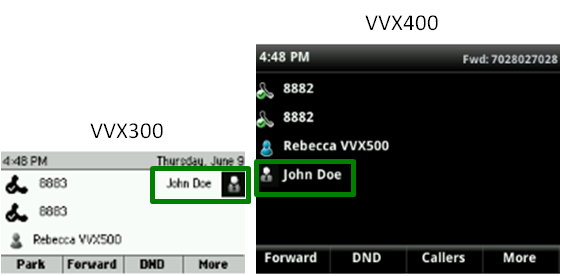
You can identify contacts designated as favorites by a grey silhoutte next to the contact's name. Use the Favorite buttons to dial contacts, and for transferring and conferencing.