

Creating a portal support ticket
You can submit a ticket in Lumen Connect to request help using the portal or to report a problem.
You can also view and edit details of a portal support ticket in Lumen Connect after you create it, view the status, or close a portal support ticket.
To create a portal support ticket:
- Using the left menu, click Support, then Ticketing.
Lumen Connect lists all tickets—repair, potential repair, activation, configuration, billable field tech, maintenance inquiry, portal support, and reason for outage (RFO)—including tickets Lumen created on your behalf. By default, Lumen Connect shows tickets created in the past 90 days and tickets are organized by the date the ticket was created (starting with the newest). The Status column shows the status for each ticket: Active, Canceled, Closed, etc. Potential tickets are marked with a yellow flag (). Tickets needing a reply from you are marked with a green flag ().
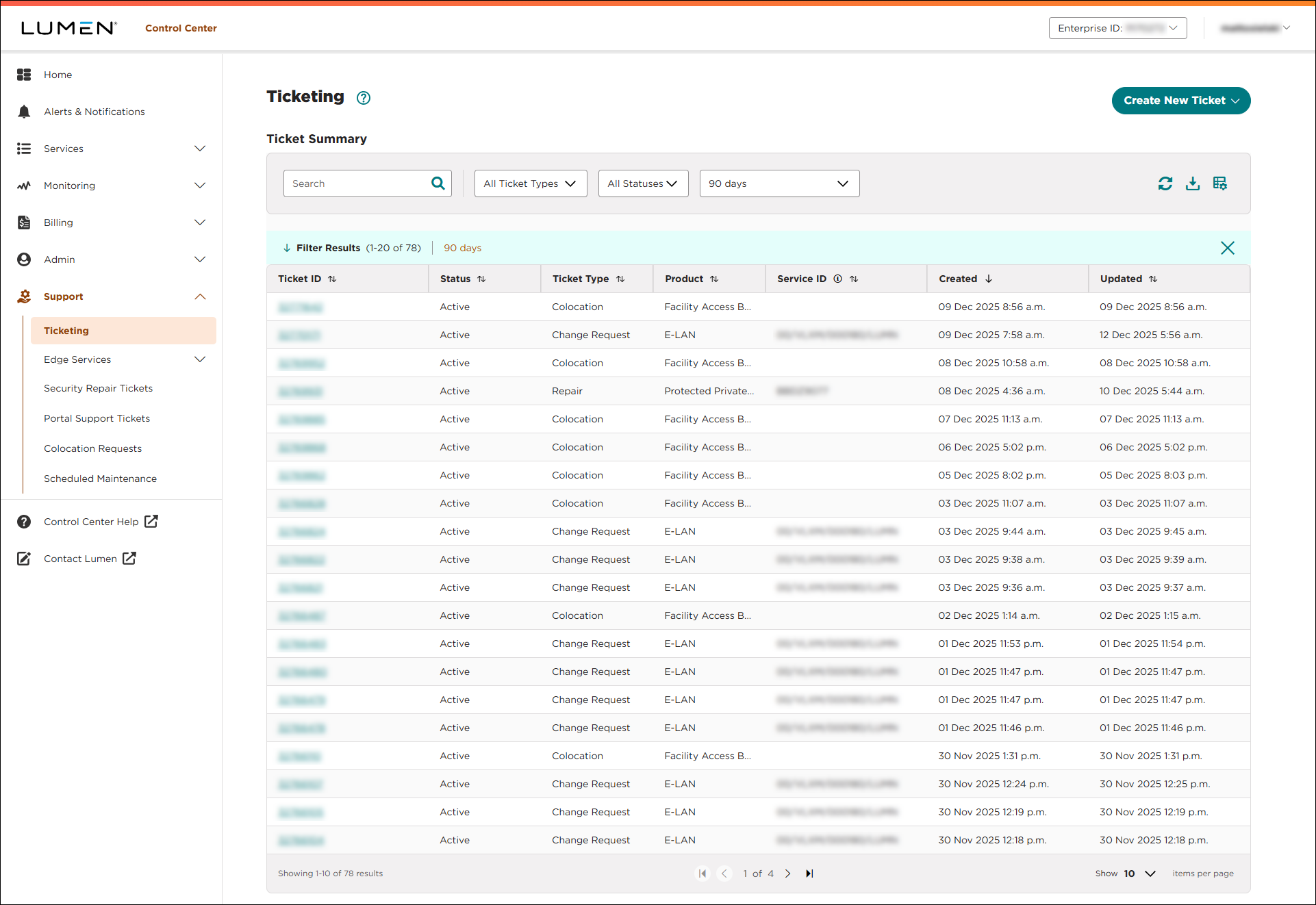
- Click Create New Ticket, then click Portal Support.
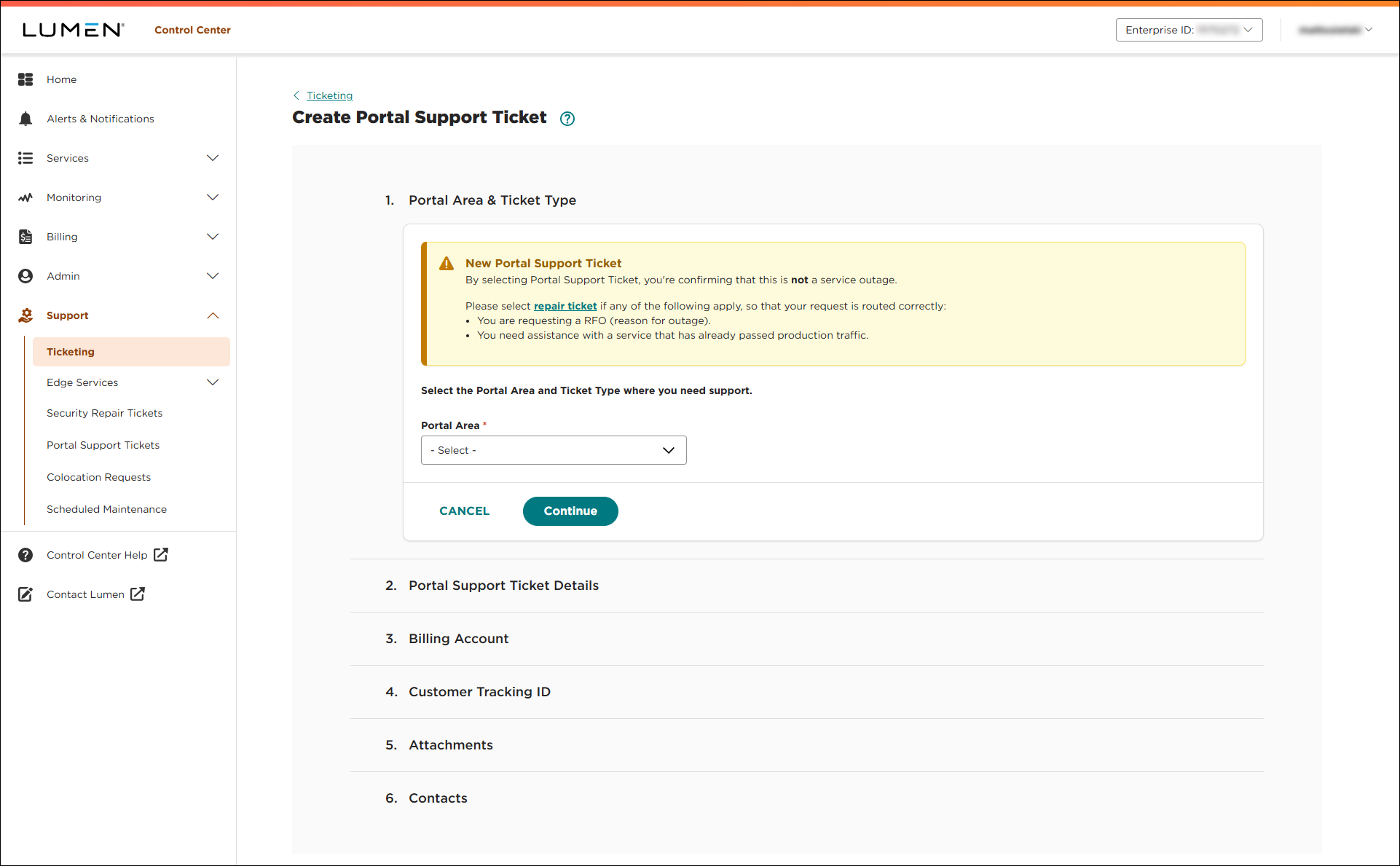
- In the Portal Area & Ticket Type section, use the fields to select the area of the portal and type of problem you're having, then click CONTINUE.
Lumen Connect builds the form based on your request. (Note that some items aren't handled by opening a portal support ticket. In those cases, Lumen Connect will guide you how to work with Lumen to resolve your issue.)
- In the Portal Support Ticket Details section, fill in the details for your request. (Fields vary based on the type of request you selected.) Please provide as much detail as possible so our team can address your issue. When you're done, click CONTINUE.
- In the Billing Account section, use the fields to select the customer number and billing account number related to your issue, then click CONTINUE.
- In the Customer Tracking ID section, do one of the following:
- If you're tracking the ticket in another system within your organization, you can type it in the Customer Tracking ID field, then click CONTINUE.
- Otherwise leave the field blank, then click CONTINUE. (You can add information later by updating the portal support ticket.)
- If you're tracking the ticket in another system within your organization, you can type it in the Customer Tracking ID field, then click CONTINUE.
- In the Attachments section, you can attach any documents (such as a more detailed explanation of the problem or additional details pertaining to your request). You can upload up to five documents (up to 2MB each). To attach a document, click Add Attachment, browse to locate the file, then click Open. When you're done, click CONTINUE.
- In the Contacts section, do the following:
- Either leave yourself as the primary contact or manually fill in the contact information for that person.
- If you want to add a secondary contact for this issue, type their information.
- Either leave yourself as the primary contact or manually fill in the contact information for that person.
- When you’re done, click SUBMIT TICKET.
Lumen Connect submits your ticket and gives you a ticket ID. You can track the status of this ticket in Lumen Connect.



