

Creating a reason for outage request
Using Lumen Connect, you can request a reason for outage (RFO) report on a closed repair ticket for outages caused by Lumen. The RFO report gives you the root cause of the outage and the steps we’ve taken to help prevent the issue from happening again. You can also request a reason for outage report for security repair tickets.
To create a reason for outage request:
- Using the left menu, click Support, then Ticketing.
Lumen Connect lists all tickets—repair, potential repair, activation, configuration, billable field tech, maintenance inquiry, portal support, and reason for outage (RFO)—including tickets Lumen created on your behalf. By default, Lumen Connect shows tickets created in the past 90 days and tickets are organized by the date the ticket was created (starting with the newest). The Status column shows the status for each ticket: Active, Canceled, Closed, etc. Potential tickets are marked with a yellow flag (). Tickets needing a reply from you are marked with a green flag ().
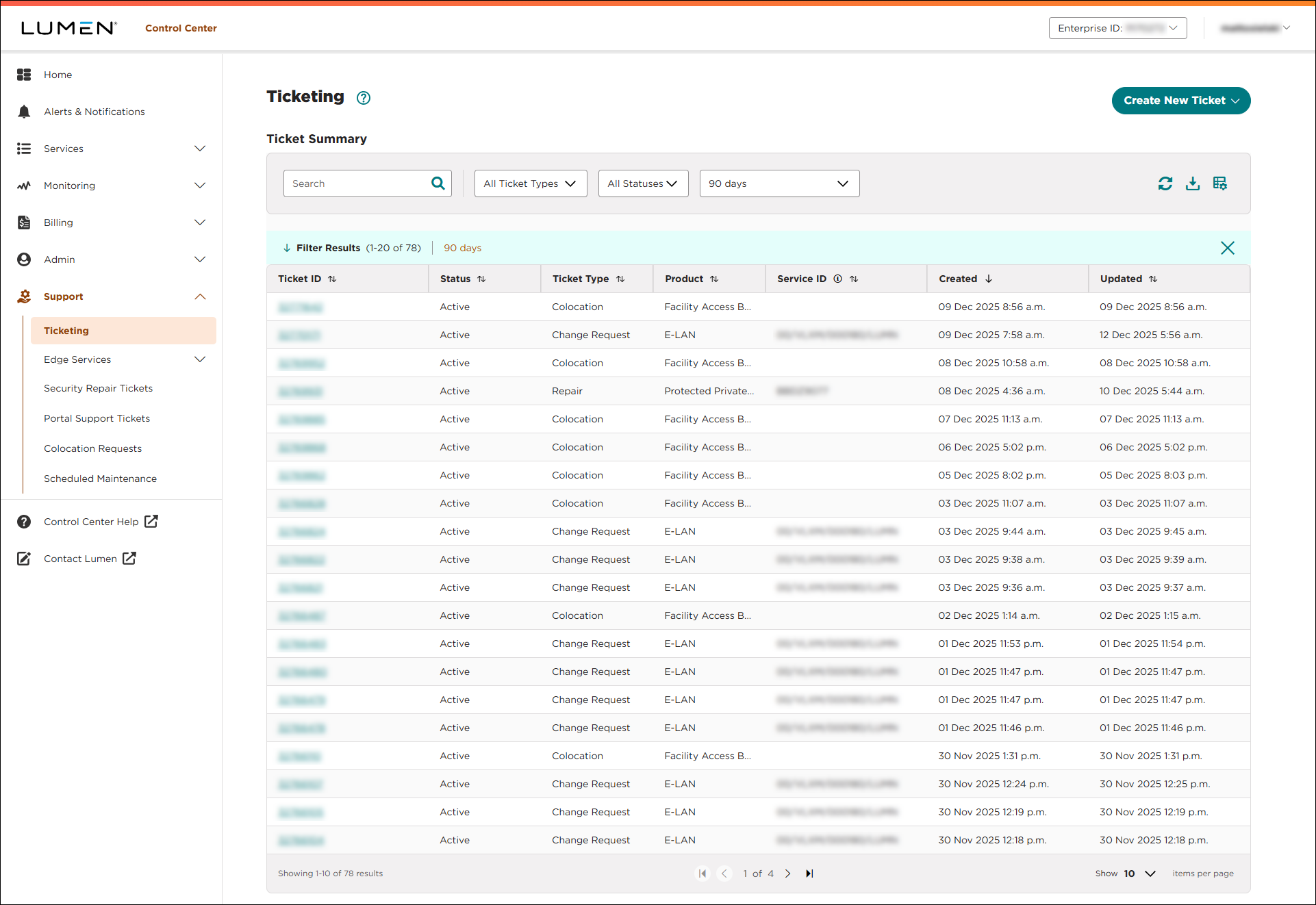
- Click the ticket ID for the closed ticket you want to request an RFO report for. (If you have a lot of tickets, you can select Closed from the Status list to see only closed tickets. Learn more about searching, filtering, and sorting your repair tickets.)
Lumen Connect shows the details for the ticket you selected.
- Click Request Reason for Outage.
- If you have specific questions or need additional information, type it in the Additional detail field.
- Click Request Reason for Outage.
Lumen Connect creates the reason for outage request.
- Review the contact information for the request and make any edits you need to.
- Type the reason you're requesting the report.
- Click Submit, then click OK to close the confirmation message.
A Lumen service representative reviews your request and will send you an email with your RFO report. You can also check the repair ticket details for notes from the service rep.



