

Creating a request for additional IP addresses
You can submit configuration change requests to add IP addresses for your Lumen IQ® Networking products. Once you submit the request, you can track its status in Lumen Connect.
Don't see this option or need to request IP addresses for another service? Try creating a change request.
To create a request for additional IP addresses:
- Using the left menu, click Support, then Ticketing.
Lumen Connect lists all tickets—repair, potential repair, activation, configuration, billable field tech, maintenance inquiry, portal support, and reason for outage (RFO)—including tickets Lumen created on your behalf. By default, Lumen Connect shows tickets created in the past 90 days and tickets are organized by the date the ticket was created (starting with the newest). The Status column shows the status for each ticket: Active, Canceled, Closed, etc. Potential tickets are marked with a yellow flag (). Tickets needing a reply from you are marked with a green flag ().
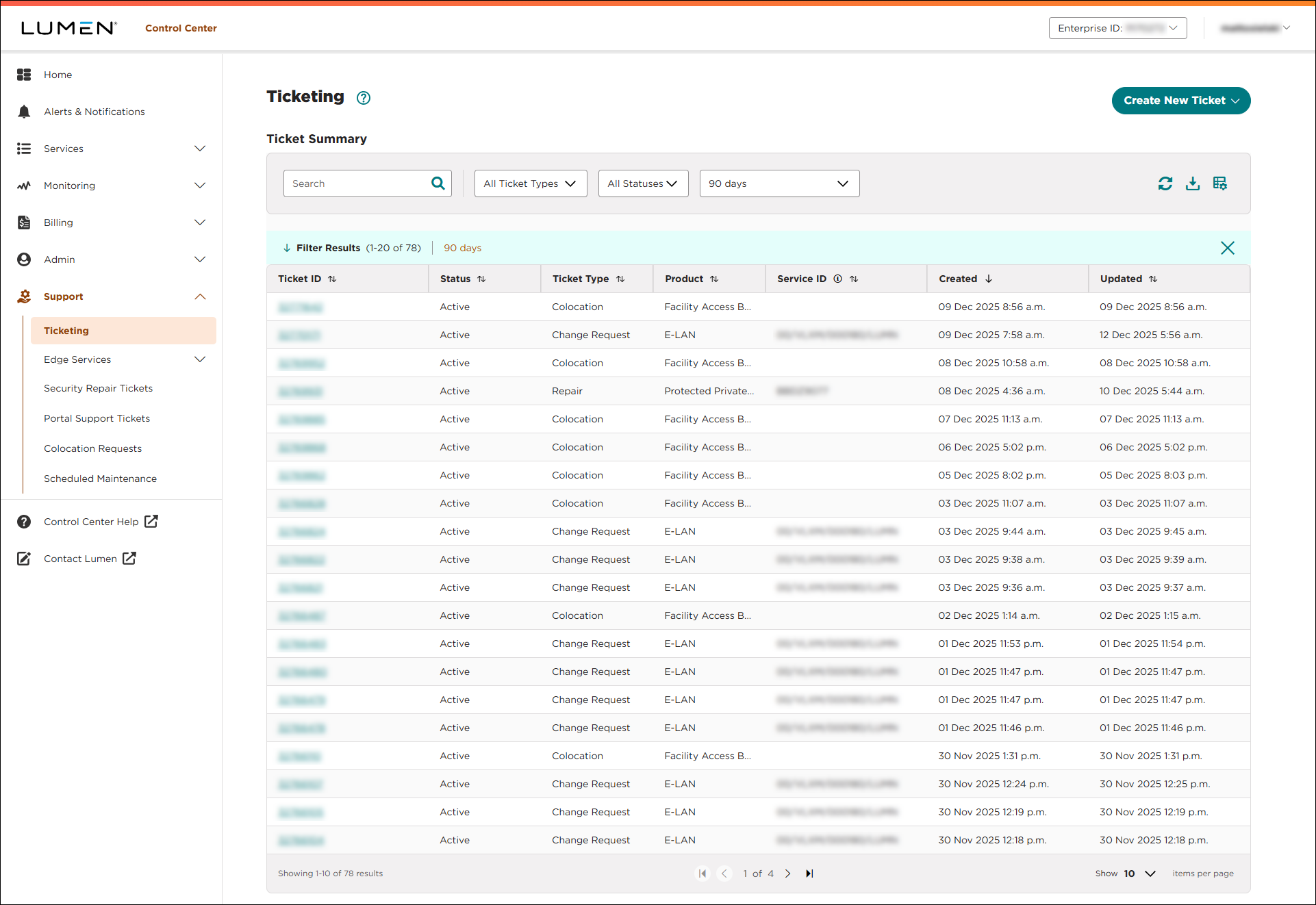
- From the Create New Ticket list, select Configuration.
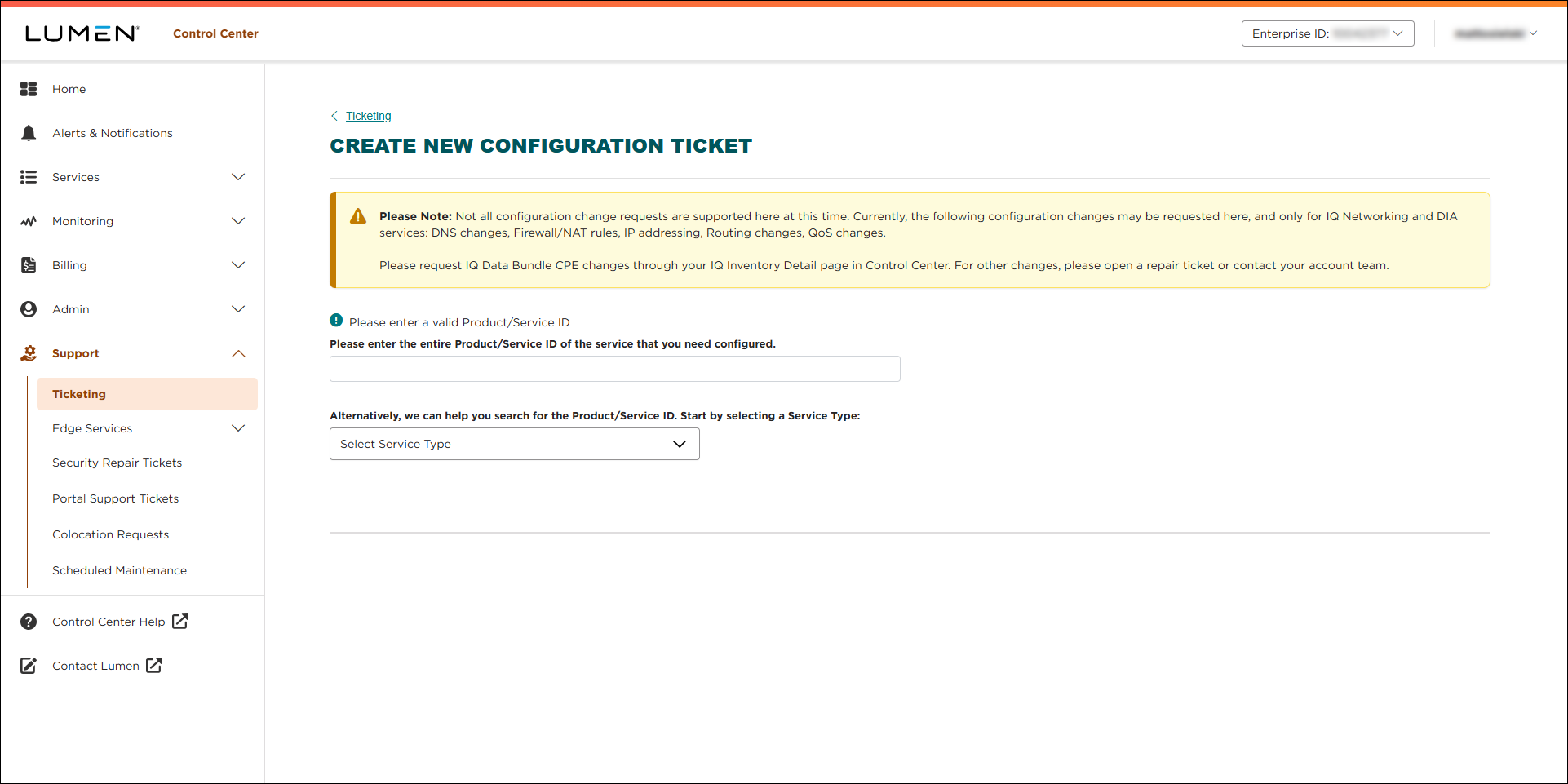
- To start the ticket, you'll need the product/service ID for the change request. Do one of the following:
- If you know the product or service ID, type it into the Product/Service ID field, then press enter on your computer keyboard.
- From the Service Type list, select the service you're submitting the request for.
- If you know the product or service ID, type it into the Product/Service ID field, then press enter on your computer keyboard.
- From the Select Configuration Change Type list, select IP Addressing.
- Click Add IP Addresses.
- From the IP Version list, select the type of IP addresses your service uses (e.g., IPv4, IPv6, or dual IPv4/IPv6). In our example, we selected IPv4.
- In the How many IPv4 addresses do you need (usable)? field, type the number of addresses you need.
- From the Type of Routing list, select the type of routing (static or BGP).
- If you're an internet service provider (ISP), select the Yes radio button. If not, select the No radio button.
- In the Your Organization's Current IP Address Space section, complete the following:
- Type your current (and short‑term planned) IP addresses and their use. (If you need additional space, you can attach a list on the Attachments tab before submitting your request.)
- Type the contact information for the Shared WhoIs Project (SWIP).
- Add any notes or details in the comments box.
- Type your current (and short‑term planned) IP addresses and their use. (If you need additional space, you can attach a list on the Attachments tab before submitting your request.)
- In the Contacts section, either leave yourself as the primary contact or select a different contact from the Primary Contact list or manually fill in the contact information for that person. (To make completing this section faster, Lumen Connect automatically lists all users for your enterprise ID as possible contacts.)
- In the Local Contact section, you can choose to add a local contact, all fields are required.
- If you need to attach any documents (such as a more detailed explanation of the problem or additional details pertaining to your request), you can upload up to two documents (up to 2 MB each). To attach a document, click Add Attachment, browse to locate the file, and click Open.
- Click Submit.
Lumen Connect submits your ticket. A representative will be assigned to your ticket within one to four hours. You can track the status of your request in Lumen Connect.



